How to translate English meetings in real time (Zoom, Teams and Meet)
A practical guide to real-time meeting translation: captions vs translation vs interpretation, a step-by-step setup for Zoom, Teams and Meet, honest limits, and phrases to ask for clarification without freezing.
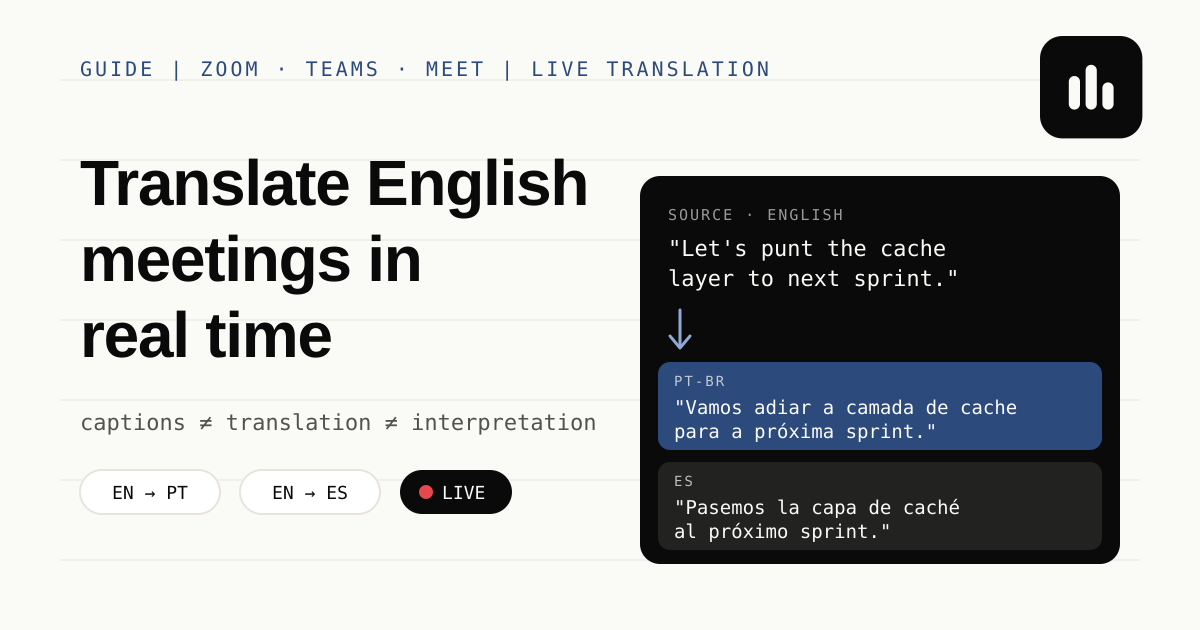
If you are searching for how to translate a meeting in real time, it is probably not because you can't speak English. It is because the call speeds up.
One-on-ones go fine. A prepared presentation goes fine. The problem is sprint planning with two engineers debating a refactor, the customer who talks fast and drops three acronyms a minute, or the all-hands where the VP changes topic before you finish processing the previous sentence. You read English with no effort — but at native speaking speed, context slips away.
This guide covers the options available today, what each one solves (and what it doesn't), and a practical workflow for following English meetings with live translated text in Portuguese or Spanish.
Captions, translation and interpretation are not the same thing
Before picking a tool, separate three things that are often confused:
- Captions: what is being said, written in the same language as the
speech. Helpful when the problem is accent or speed, but the text stays in English. - Text translation: speech is transcribed and then translated into another language, shown as on-screen text. You read in your language what was said in English, with a short delay. - Interpretation (voice): someone — or a system — speaks the translation out loud, almost simultaneously. This is what happens at conferences with interpreters.
For people who already understand most English, text translation is usually the sweet spot: you keep hearing the original voice and use the translated text as backup when you miss a sentence, a number or a technical term.
Your options for translating an English meeting
1. Native platform captions and translation
Zoom, Microsoft Teams and Google Meet offer automatic captions and, in some cases, translated captions. Availability depends on your plan, account and admin settings — and each platform has its own rules about supported languages.
When they are enabled for your account, they are the simplest path. Common limits: the feature may not be available in another company's meeting (the host decides), each platform works differently, and captions disappear once the speech moves on.
2. Phone translator or browser extension
Pointing your phone at the speaker or installing a translation extension works in an emergency. In practice, audio picked up by a phone microphone loses quality, extensions only work in the web version of the meeting, and many companies block extensions on corporate machines.
3. A desktop app that transcribes and translates computer audio
The third option is an app that captures system audio — the same sound coming out of your headphones — transcribes it in the meeting language and shows the translation right below each passage. Because it works with computer audio, the same workflow covers Zoom, Teams, Meet or any desktop meeting app, without a bot joining the call.
That is the workflow behind Minuta's real-time meeting translation.
4. A human interpreter
For legal negotiations, board meetings or any conversation where a translation error is expensive, a professional interpreter is still the right choice. AI tools are support, not a replacement, in those cases.
Step by step: live translation on Zoom, Teams or Meet with Minuta
The flow below is the same for every desktop meeting platform. Set it up before joining the call:
- Install and sign in. Download the desktop app, sign in and
allow the audio permissions your operating system requests. 2. Set the meeting language. Choose English as the spoken language, or use automatic detection when the call mixes languages. 3. Turn translation on. Enable translation and choose Portuguese or Spanish as the target language. 4. Start capture in Minuta. Then join Zoom, Teams or Meet as usual. Minuta listens to computer audio and does not join as a participant — nobody sees a bot in the attendee list. 5. Read source and translation together. As each passage is processed, the English transcript appears first and the translation right below it.
If having a visible bot in a customer meeting is the concern, the no-plugin meeting transcription page covers capture permissions and what is processed in the cloud.
What it looks like on screen (illustrative example)
Source · English
"We need to move the rollout to next week so support has time to update the
help center."
Translation · Portuguese
"Precisamos adiar o lançamento para a próxima semana, para que o suporte tenha
tempo de atualizar a central de ajuda."
This is an example written for this article, not a recording of a real meeting. Actual wording depends on the audio, language settings and cloud translation output.
How to read translation without losing the conversation
Having translated text on screen does not solve everything. A few habits make a difference:
- Listen first, read second. Treat translation as a safety net, not your
primary source. If you only read, you always answer late. - Check numbers, names and acronyms in the source. Dates, amounts and product names are where machine translation slips most. The English transcript stays right above for comparison. - Prepare a mental glossary. Before a customer call, review domain terms (SOX, SLA, churn, rollout). The fewer new terms, the less you depend on translation. - Use translation to recover context, not to build your answer. When it is your turn, think directly in English. If you need help structuring the reply, read how to answer technical questions in English meetings.
Phrases to ask for clarification in English
Even with translation, you will sometimes miss something. Asking for clarification is normal in international meetings — native speakers do it all the time. A few phrases that sound natural:
- "Sorry, could you repeat the last part?"
- "Just to make sure I got it right — you mean ...?"
- "Could you spell that acronym for me?"
- "Can we go back to the point about ... for a second?"
- "Let me play that back: ..."
The last one is especially useful: you summarize what you understood and the other person corrects it if needed. It signals attention, not insecurity.
Limits you should know about
Being honest about limits avoids frustration in your first important meeting:
- It is text translation, not voice interpretation. You still hear the
original English audio. - There is a short delay. Translation appears after the passage is processed; connection quality and cloud processing affect speed. - Specialist terms may need review. Names, acronyms, overlapping speakers and technical jargon can come out wrong — which is why the source stays visible. - It needs an internet connection. Transcription and translation use cloud services. The meeting record is saved in the desktop app. See how Minuta handles meeting data.
Checklist before your next English meeting
- App installed and audio permissions granted
- Meeting language set to English (or automatic detection)
- Translation on, with your target language selected
- Capture tested with an English video before the call
- A quick glossary of the customer's or project's terms
- Two or three clarification phrases ready to use
Frequently asked questions
Can I translate a Zoom meeting in real time for free?
It depends on your Zoom plan and account settings. With Minuta, the 7-day trial includes every feature with 120 minutes total, no card required. After that, the Free plan includes 60 shared minutes per month for transcription and translation.
Will the other people know I'm using translation?
Minuta captures computer audio and does not join the meeting as a participant, so no bot appears in the attendee list. Always follow your company's and the other party's rules about recording and transcription.
Does it work with Teams and Google Meet too?
Yes. Because the workflow uses system audio, it works with Zoom, Teams, Meet and other desktop meeting apps.
Does translation replace an interpreter?
No. It supports people who already understand part of the English and want to keep up with fast calls. For high-stakes negotiations, a professional interpreter is still the better choice.
How much does it cost after the trial?
Free keeps 60 minutes per month of transcription and translation. Pro unlocks unlimited use plus the copilot that suggests answers. The first 100 Pro customers (Founding 100) lock in US$ 6.99/month for 12 months. See current plans.
Summary
To translate an English meeting in real time, first decide what you need: captions (same language), text translation, or voice interpretation. If you already understand most English and lose context when the call speeds up, text translation next to the original transcript is the most practical balance — and it works on any platform when it comes from computer audio.
Want to try it on your next call? See how real-time meeting translation works or download Minuta and set it up before you join.